
Search Google or Type a URL? What That Message Means and What to Enter
Search Google or Type a URL? What That Message Means and What to Enter
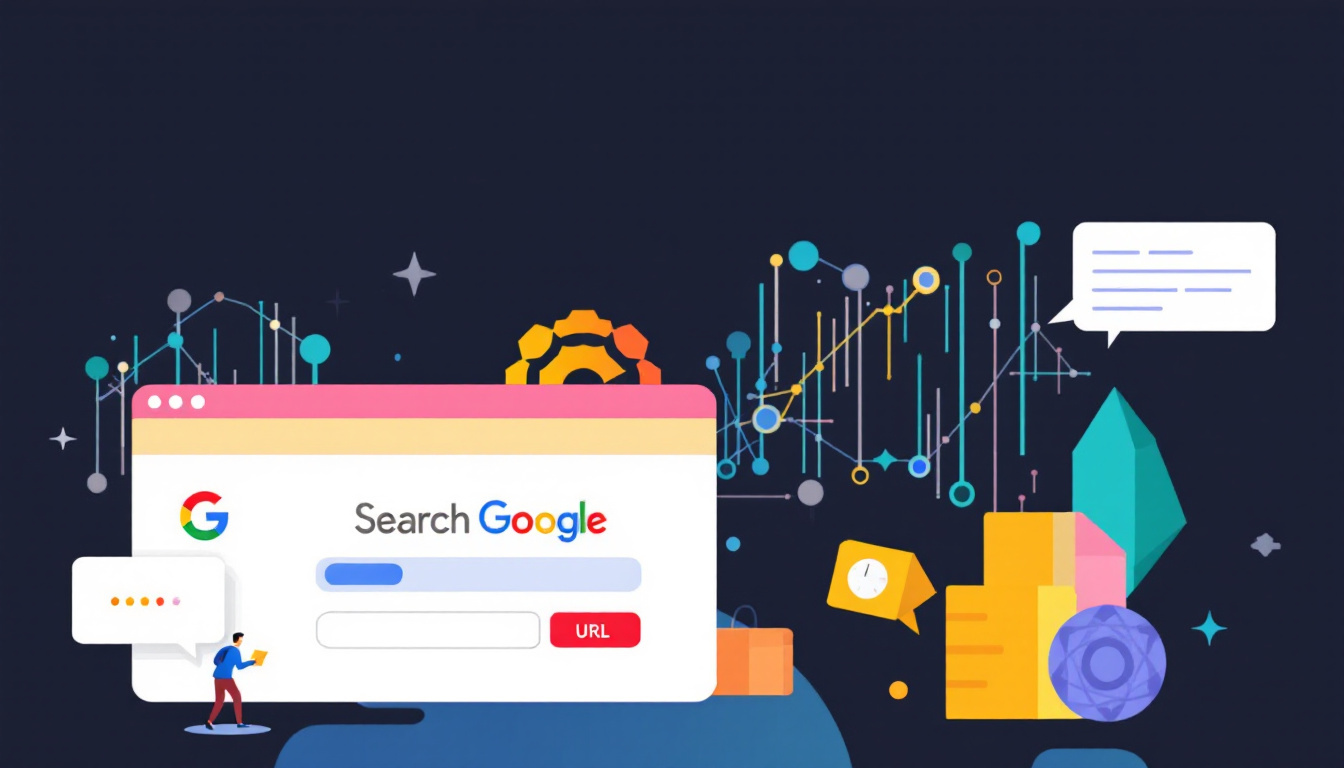
If you open a new browser tab and see “Search Google or type a URL,” the browser is giving you two ways to navigate:
- Search Google when you want to find information.
- Type a URL when you already know the website or page you want to visit.
The message looks simple, but knowing which option to use can save time, improve search results, and help you avoid common browsing mistakes. This guide explains exactly what to type, how browsers interpret your input, and how to solve problems when a search or URL does not work as expected.
What does “Search Google or type a URL” mean?
“Search Google or type a URL” is placeholder text displayed in the address bar of browsers such as Google Chrome. It tells you that the same field can perform two different functions:
- Search the web
- Open a web address directly
This field is technically called the address bar, omnibox, or URL bar. In Chrome, it is called the Omnibox because it combines an address bar with a search box.
You do not need to open Google separately before searching. Simply click the address bar, enter your search terms, and press Enter.
Should you search Google or type a URL?
Use the option that matches what you already know.
| What you want to do | What to enter |
|---|---|
| Find information about a topic | Search keywords |
| Open a specific website | The website’s domain or URL |
| Visit a particular page | The complete page URL |
| Search within a website | The site name and your topic, or a site search operator |
| Open a local file | The file path or select it from your computer |
| Repeat a previous visit | Choose a suggestion from the address bar |
Use Google search when you do not know the exact website
Search Google when you are looking for information, but do not know which page contains it.
Examples:
best laptops for students
how to reset a Wi-Fi router
weather in Tunis
Italian restaurants near me
how to compress a PDF
Google will return pages that are relevant to your query. You can then compare the results and choose the most useful source.
Type a URL when you know where you want to go
Type a URL when you already know the website or page address.
Examples:
https://www.wikipedia.org/
https://www.youtube.com/
https://rankbolt.ai/
https://example.com/pricing
When the address is correct, the browser opens that page directly instead of showing search results.
What is a URL?
A URL, or Uniform Resource Locator, is the address of a resource on the internet. It tells your browser where to find a website, webpage, image, document, or other online file.
Consider this example:
https://www.example.com/blog/seo-guide
Each part has a purpose:
https://is the protocol used to connect securely to the website.wwwis an optional subdomain.example.comis the domain name./blog/seo-guideis the path to a specific page.
A URL may also include additional parts:
https://www.example.com/search?q=seo#results
Here:
?q=seois a query parameter.#resultsis a fragment that points to a location on the page.
How to type a URL correctly
To open a website directly:
- Click the address bar.
- Type the domain or complete URL.
- Check the spelling.
- Press Enter.
For example:
https://www.nasa.gov/
You can often omit https:// and type:
nasa.gov
Modern browsers usually add the protocol automatically.
Include the full path for a specific page
Typing only the domain opens the homepage:
example.com
To open a particular page, include its path:
example.com/blog/website-speed
If you omit the path, the browser cannot automatically know which internal page you want.
Pay attention to spelling
A small spelling mistake can lead to:
- A failed page load
- A search instead of direct navigation
- A different website
- A potentially unsafe lookalike domain
For example, these addresses are not necessarily the same:
example.com
examples.com
example.co
example.com.org
Always verify the domain before entering sensitive information.
How to search Google effectively from the address bar
You can search with a few words or write a detailed question. The more specific your query, the more focused the results are likely to be.
Use specific keywords
Instead of:
shoes
Try:
best running shoes for flat feet
Instead of:
taxes
Try:
small business tax deadlines Tunisia 2026
Specific searches provide Google with more context.
Search with a complete question
Google understands natural-language queries, so you can type:
How do I create a backup of my Android phone?
This is often more useful than entering only:
Android backup
Use quotation marks for an exact phrase
Place quotation marks around words when you want Google to search for that exact phrase:
"search Google or type a URL"
This is useful for:
- Finding an exact sentence
- Locating a specific title
- Researching a product name
- Finding duplicate or quoted content
Search a specific website
Use the site: operator to restrict results to one domain:
site:example.com email marketing
To search for a phrase on a particular website:
site:example.com "content strategy"
This is useful when a website has a poor internal search function.
Exclude unwanted words
Use a minus sign before a word you want to exclude:
apple recipes -iphone
This can reduce irrelevant results when a word has multiple meanings.
Search for a particular file type
Use the filetype: operator to find documents:
filetype:pdf digital marketing checklist
Common file types include:
filetype:pdf
filetype:docx
filetype:pptx
filetype:xlsx
Search within a date range
For recent information, include a year or date-related term:
SEO trends 2026
You can also use Google’s search tools to filter results by a custom date range.
What happens when you type a website name without a domain extension?
Suppose you type:
youtube
The browser may search Google for “youtube” instead of opening the website directly. To navigate directly, use:
youtube.com
The same applies to most websites. A domain extension such as .com, .org, .net, or a country-code extension helps the browser recognize that you are entering a web address.
Some browsers may recognize popular websites without the extension based on your history, bookmarks, or autocomplete suggestions. However, relying on autocomplete can occasionally open the wrong page.
Why does my URL turn into a Google search?
A browser may search your input instead of opening it when:
- The address is incomplete.
- The domain is misspelled.
- The address contains spaces.
- The protocol or domain extension is missing.
- The browser does not recognize the text as a valid URL.
- Your default search engine is handling the input.
For example, this may be treated as a search:
bestwebsite
This is more clearly recognized as a URL:
bestwebsite.com
If you want to force direct navigation, enter the complete address, including the domain extension.
Why does my URL not open?
Several common issues can prevent a URL from loading.
1. The address is misspelled
Check every part of the domain and page path. Domain names are not forgiving: one incorrect character can prevent the page from opening.
2. The website is temporarily unavailable
The website’s server may be offline, overloaded, or undergoing maintenance. Try again later or check whether other websites load normally.
3. Your internet connection is down
Open another website to test your connection. If nothing loads, restart your connection or switch networks.
4. The page has moved or been deleted
You may see a 404 Not Found error. In that case:
- Remove the page path and try the homepage.
- Search Google for the page title.
- Look for an updated link on the website.
5. The website uses HTTPS
Try the secure version:
https://example.com
Most modern sites redirect automatically, but not all servers are configured identically.
6. Your browser or DNS cache is outdated
Refreshing the page, opening it in a private window, or clearing cached data can sometimes resolve loading problems.
Is typing a URL safer than searching Google?
Neither method is automatically safe. The main security issue is whether the website you open is legitimate.
Searching Google can expose you to:
- Misleading advertisements
- Impersonation websites
- Malicious downloads
- Fake customer-support pages
- Lookalike domains
Typing a URL directly can also be dangerous if the address is misspelled or copied from an untrusted source.
Check the domain before entering private information
Before signing in or entering payment details, verify:
- The domain spelling is correct.
- The website uses
https://. - The page is not a suspicious lookalike.
- The address does not contain unexpected words or characters.
- The browser does not display a security warning.
A padlock or HTTPS connection indicates that the connection is encrypted. It does not guarantee that the website itself is legitimate.
What is the difference between a search query and a URL?
A search query describes what you want to find:
best project management tools
A URL identifies where a specific resource is located:
https://example.com/project-management-tools
The browser decides how to handle your input:
- If it looks like a valid web address, it attempts to open it.
- If it looks like ordinary words, it sends it to your default search engine.
This is why the address bar can function as both a navigation tool and a search box.
Can you use another search engine?
Yes. Chrome and other browsers let you change the default search engine. Depending on your settings, the address bar may send searches to:
- Bing
- DuckDuckGo
- Yahoo
- Ecosia
- A company or school search engine
The wording may still say “Search Google or type a URL,” even if your default search engine has been changed.
To change the default search engine in Chrome:
- Open Chrome settings.
- Select Search engine.
- Choose your preferred search provider.
- Return to the address bar and test a search.
The exact menu names may vary by browser version and operating system.
How to use the address bar faster
The address bar supports several keyboard shortcuts and productivity features.
Focus the address bar
Use:
- Ctrl + L on Windows and Linux
- Command + L on macOS
This selects the current address so you can immediately type something new.
Open a new tab
Use:
- Ctrl + T on Windows and Linux
- Command + T on macOS
Open a URL in a new tab
Type the address, then press:
- Alt + Enter on Windows, or
- Option + Enter on some macOS setups
Browser behavior can vary, so you can also middle-click a link or use the context menu.
Use autocomplete carefully
The browser may suggest websites based on:
- Your browsing history
- Bookmarks
- Frequently visited pages
- Search predictions
- Open tabs
Autocomplete saves time, but do not accept a suggestion automatically when visiting a banking, email, shopping, or other sensitive website. Confirm the final address first.
Common mistakes to avoid
Mistake 1: Searching for a website you already know
If you already know the exact website, typing the URL is usually faster than searching for its name.
Instead of:
Google RankBolt
Use:
rankbolt.ai
Mistake 2: Using vague search terms
A query such as:
marketing
is too broad for many purposes. Add context:
technical SEO checklist for SaaS websites
Mistake 3: Clicking the first result automatically
The first result may be an advertisement, an outdated page, or a poor match. Review the URL, title, and source before clicking.
Mistake 4: Trusting a familiar brand name
Scammers often create websites that resemble well-known brands. Check the domain rather than relying only on logos or page design.
Mistake 5: Sharing sensitive information on an unfamiliar page
Do not enter passwords, card details, or identity documents unless you have verified the website and its domain.
Search Google or type a URL on mobile devices
On phones and tablets, the same principle applies. The browser’s address bar may appear at the top or bottom of the screen.
To search:
best museums in Tunis
To open a website:
https://rankbolt.ai/
Mobile browsers also use autocomplete, voice input, browsing history, and saved bookmarks. Voice search can be convenient, but review the interpreted text before submitting searches involving names, addresses, or URLs.
Frequently asked questions
Is “Search Google or type a URL” an error?
No. It is normal placeholder text in the browser’s address bar. It tells you that you can either search the web or navigate directly to a URL.
What should I type to visit a website?
Type the website’s domain, such as:
example.com
For a specific page, type the complete URL, such as:
example.com/contact
Do I need to type https://?
Usually not. Most modern browsers add it automatically. However, including https:// makes the intended destination explicit.
Why does Chrome search instead of opening my website?
The browser may not recognize what you entered as a valid URL. Add the domain extension, correct spelling errors, and remove spaces.
Can I search Google without opening Google first?
Yes. Type your query directly into the browser’s address bar and press Enter.
Is a URL the same as a website?
Not exactly. A website is a collection of online pages and resources. A URL is the address of a specific resource, such as a homepage, article, image, or document.
What is the safest way to open a banking website?
Use the official domain saved in a trusted bookmark or type the address carefully. Avoid clicking unsolicited links in emails, text messages, or pop-up windows. Always verify the domain before signing in.
The simple rule to remember
Use the address bar as a decision point:
- Know where you want to go? Type the URL.
- Still looking for information? Type a search query.
- Entering sensitive information? Verify the domain first.
- Getting the wrong results? Make your search more specific.
“Search Google or type a URL” is not asking you to choose between two separate tools. It is one browser field that helps you either find a destination or go directly to one.
For everyday browsing, the fastest approach is simple: search when you need answers, type a URL when you already know the destination, and always check the address before trusting the page.